Plug and play online product personalization tool for print businesses.
Enable online product customization, dynamic pricing, and print-ready file generation with a powerful web-to-print software built for modern print and packaging businesses.
Chuck Kohut Marketing Manager, Custom Printing Industry
"DesignNBuy turned our manual process into a powerful automated design tool. The print-ready PDFs integrate perfectly with our machines, saving us major production time.
"
"The software is great - it offers literally everything we need to offer customized products to our clients that they can modify and proof on their own. Their customer support is out of the world amazing!!!"
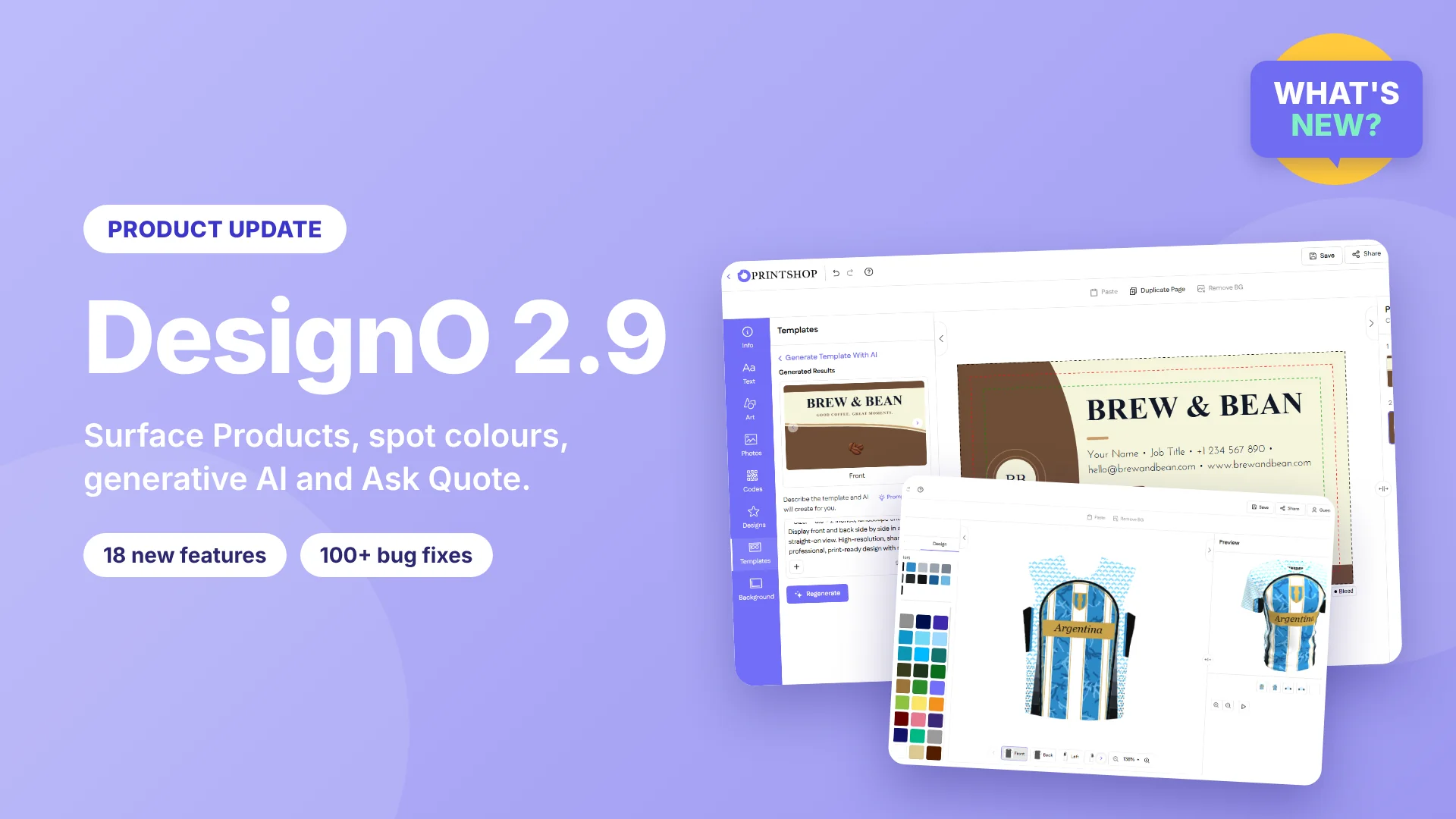
DesignO 2.9 Adds Generative AI, Spot Colors and Surface Products to Web-to-Print
Until now, some print jobs were hard to run through an online store. You could not sell a product made of several printable parts, keep a named ink from design to output, or take a quote request straight from the product page. Customers who did not find a suitable template had to start from a blank canvas.
DesignO fixes each of these with its latest 2.9 version. Released in November 2026, it brings 18 new features, 6 improvements and 100+ bug fixes across DesignO Admin, the Design Studio, Quick Edit, the Upload tool and our WordPress, BigCommerce, Shopify and Magento plugins.
At a Glance - What's New in DesignO
What is new
What it does for you
Surface Products
Sell products made of several parts, each with its own sizes, colors, patterns and artwork
Spot colors
Define named inks and choose where customers can use them
Generative AI
Customers create print templates, clipart and promo product designs from a text prompt, a reference image or a URL
AI image tools
Outpaint, template auto-resize, Magic Eraser and Image Outline
Ask Quote
Take quote requests from the product detail page, the Design Studio or Quick Edit, with files and price
Quick Editor redesign
A new look on the Full Editor structure that works on mobile
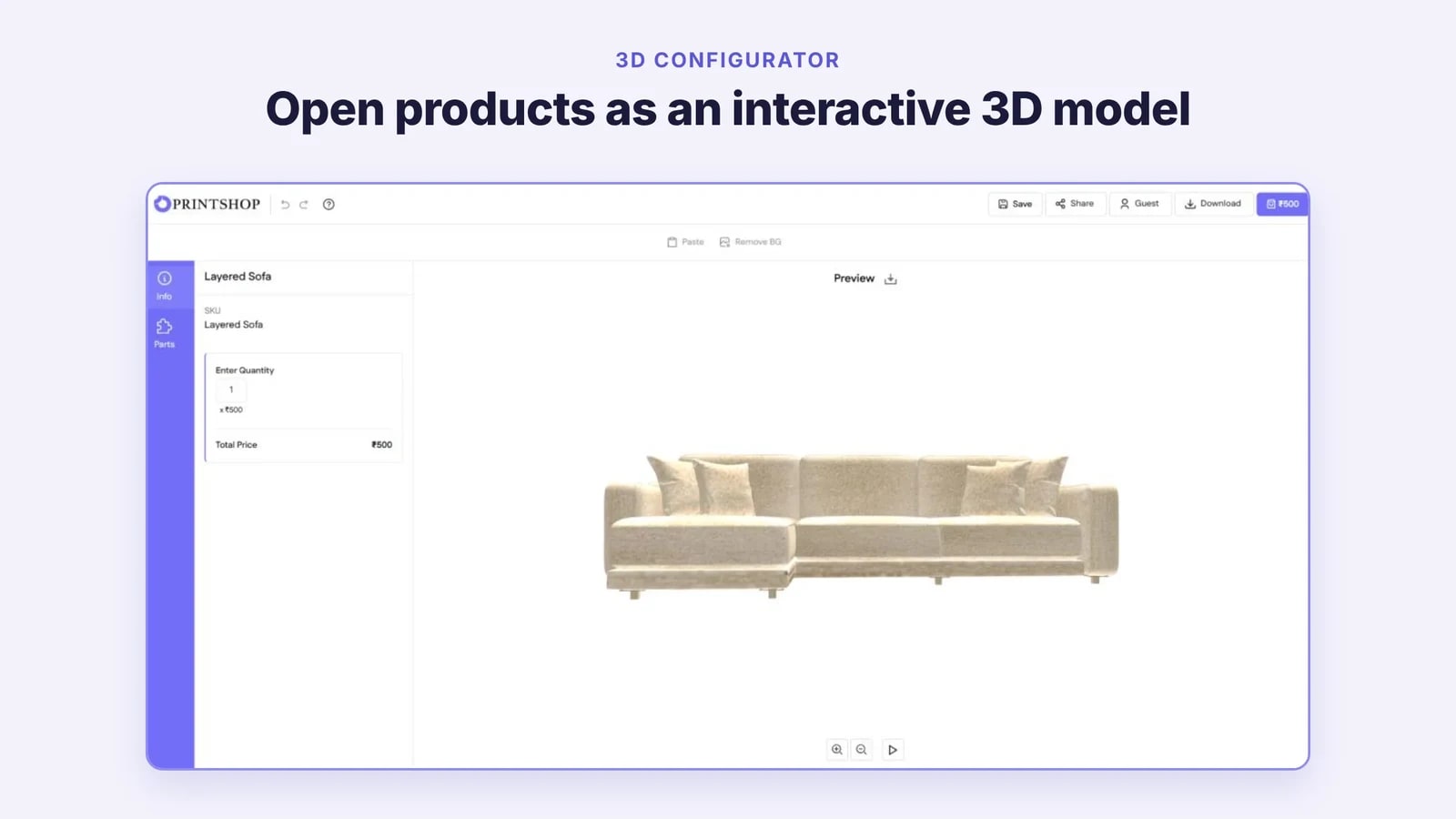
3D Configurator
Open a product as an interactive 3D configurator
Design tool feature control
Turn Design Studio features on or off per product profile and set the left panel order
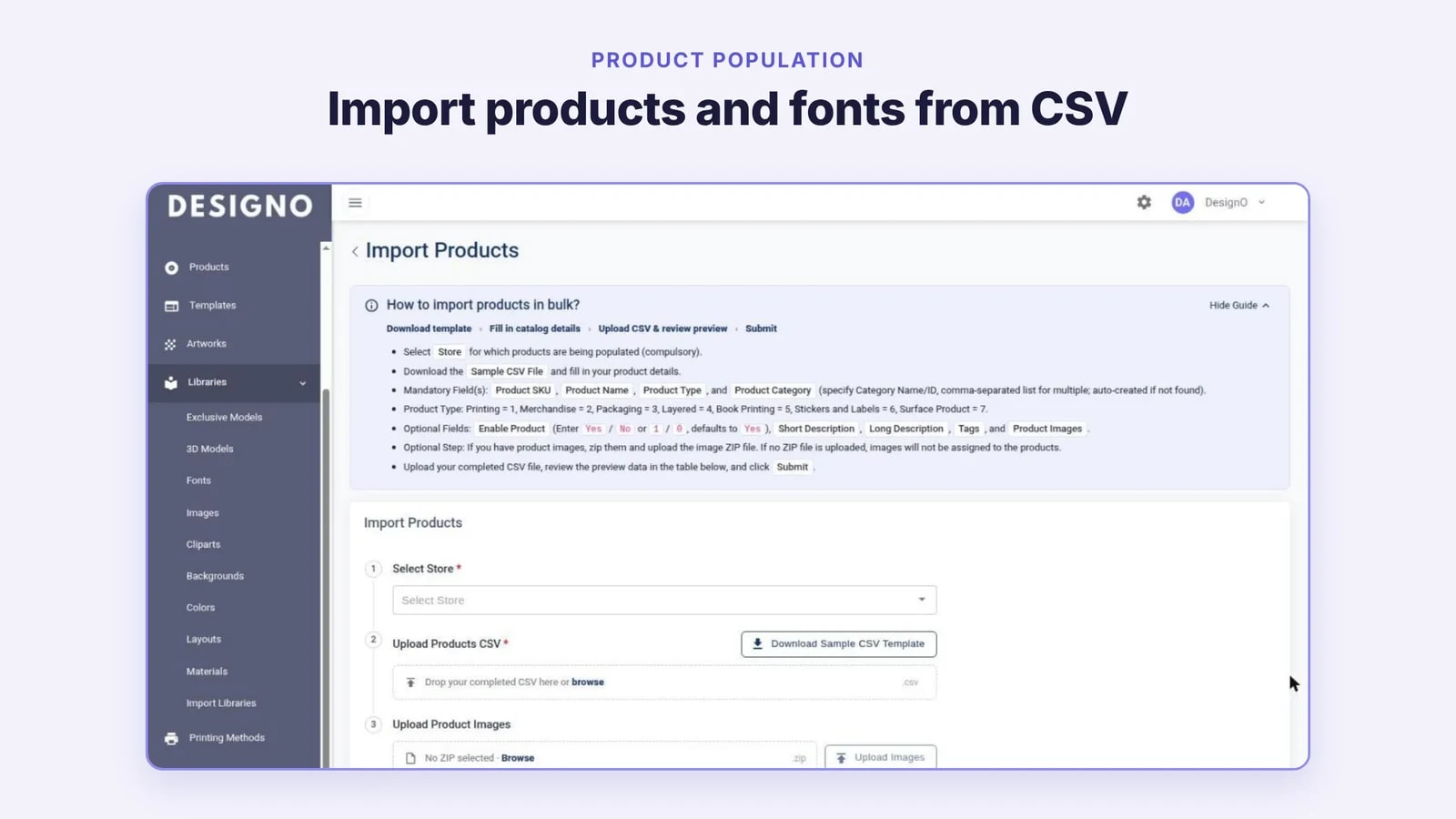
Product population
CSV product and font import, bulk product update and store-wise email templates
Faster DesignO Studio
Opens in an overlay on the product page and loads only what it needs
Security and reliability
A security review against the OWASP Top 10 and automatic output service failover
Shopify app and Magento extension
Native Shopify discounts and Magento multi-store support
1. Surface Products: Sell Products Made of Several Parts
The problem: You could not sell a product made of several separate printable parts, where each part needs its own design area, its own color or pattern, and its own setup for every size. Layered products covered part of this, but not per-part sizes and per-part output.
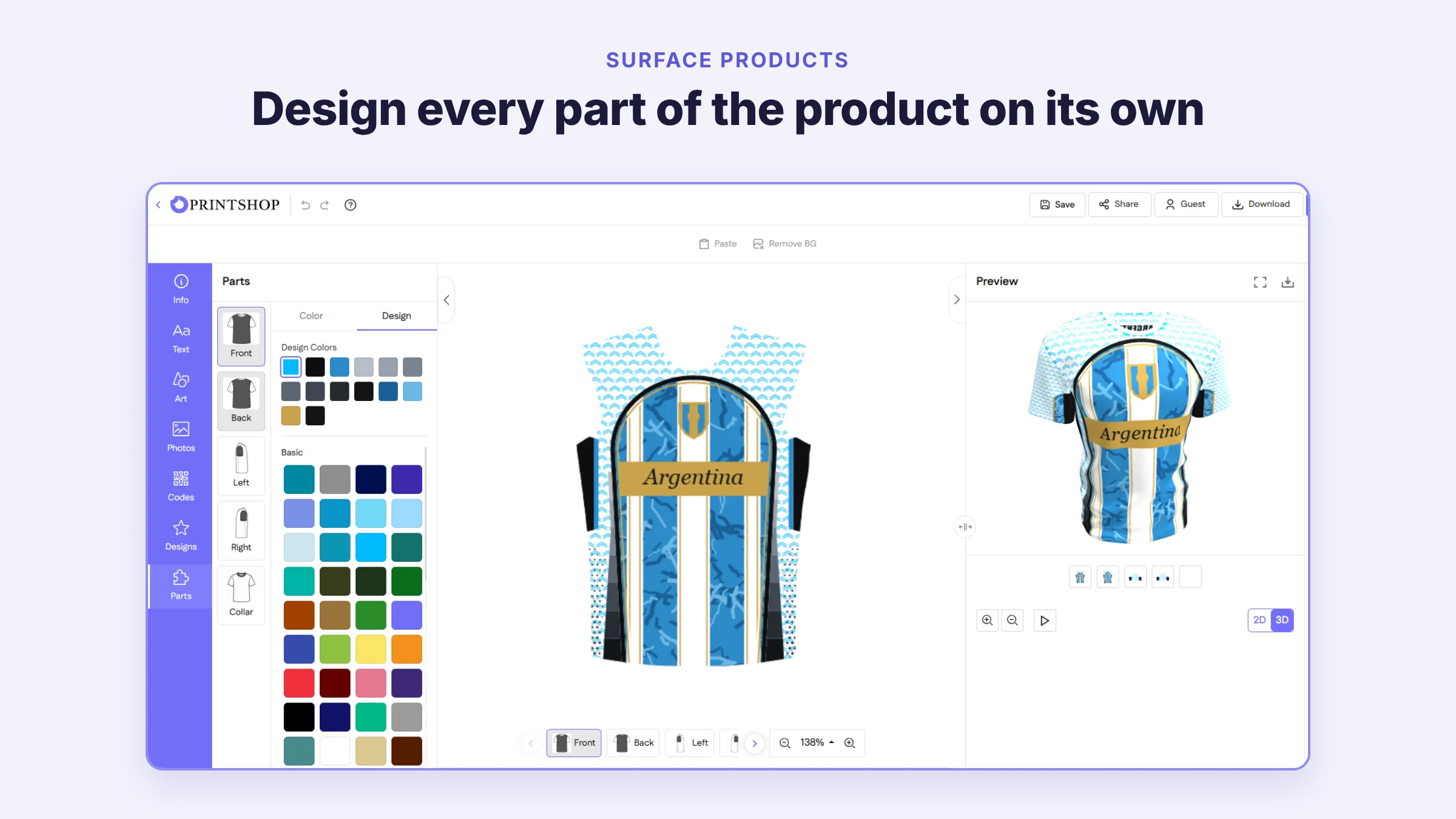
What is new: DesignO 2.9 adds a new product type called Surface Product, with a uniform and a bike already set up as examples.
Parts and sizes in admin: You list the parts and the sizes, then set the part image, overlay, design area and output size for every part and size.
Part-by-part design: In the Design Studio, your customer picks a part from the Parts panel and applies a color or a pattern to that part only.
3D preview: The preview shows each part with its own design.
Clear orders: Order details show a thumbnail for each part.
Why it matters: One product listing covers every size, with exact output for each part.
Best for: Custom product manufacturers for eg. - uniforms, vehicle wrapping, custom-tailored clothing, t-shirts, or any product that comes in different sizes and has several parts to personalise.
2. Spot Colors: Keep Named Inks From Design to Production
The problem: All colors were treated as normal process colors. If you print with named inks, you had no way to keep those inks in the design and in the output, or to limit which design elements may use them.
What is new:
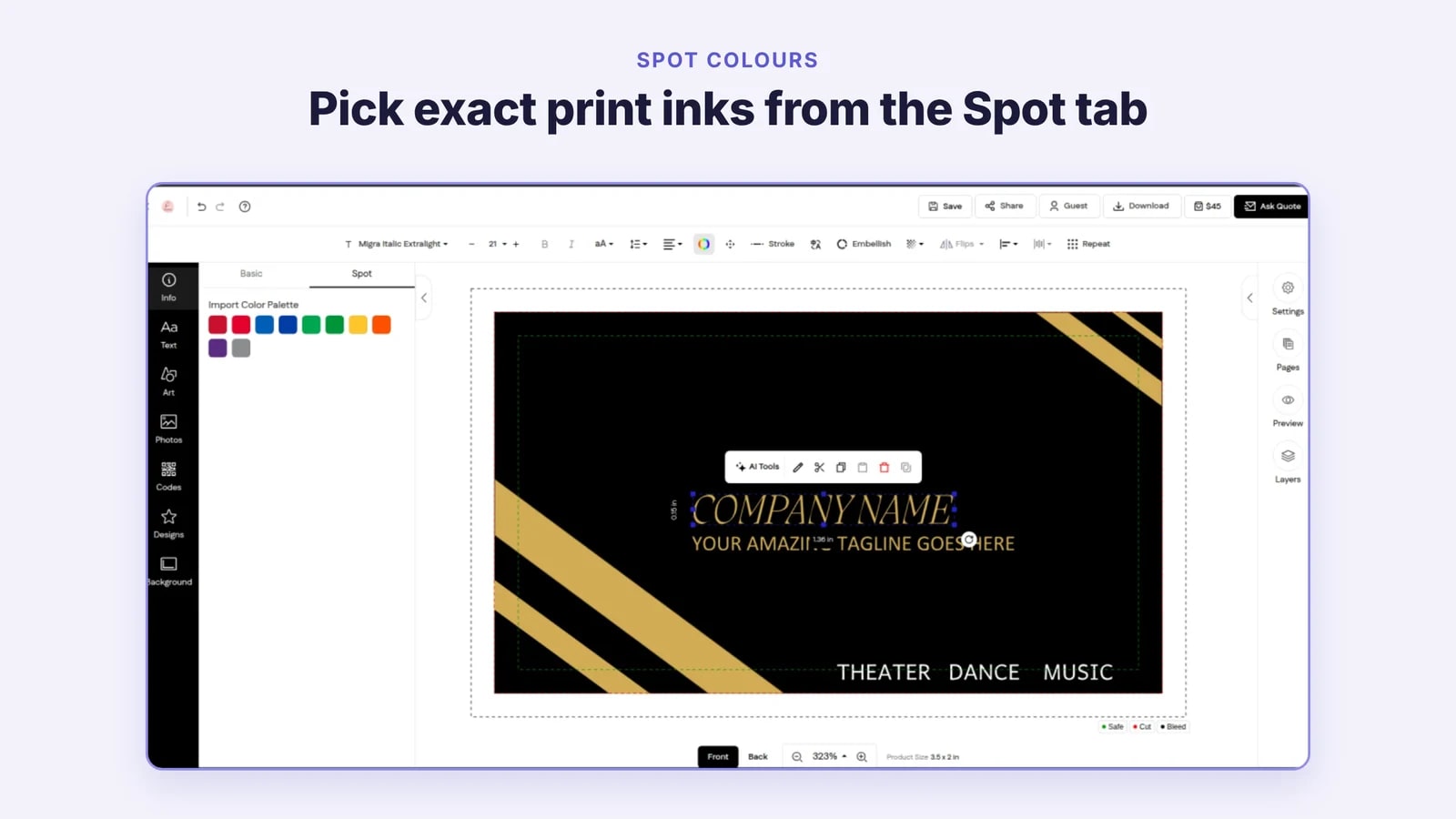
Spot color setup: You define each spot color with its separation name, ink type, LAB values, tint and overprint settings, and production notes.
Control per profile: In the personalization profile, you decide whether spot colors are allowed, which elements can use them and which palettes they get.
Brand colors: Brand colors can also be spot colors.
Basic and Spot tabs: Customers pick spot colors from a separate Spot tab in the Design Studio and Quick Edit, also on mobile. Normal colors stay in the Basic tab.
Carried to output: Spot colors are kept in saved designs and passed to output.
Why it matters: You get exact ink matching for brand and corporate print jobs, and fewer color mistakes between design and production.
Best for: Printers who print with named inks.
3. Generative AI: Templates, Clipart and Designs From a Prompt
The problem: A customer who did not find a suitable template had to start from a blank canvas. There was no way to create a full template, clipart or artwork from a short description.
What is new: Customers generate print templates, merchandise templates, clipart and artwork from a text prompt, with the colors and fonts they pick. Templates and clipart can also start from an uploaded reference image or a brand URL, such as a website or LinkedIn page, in the customer’s own brand colors. Example prompts that match the product help them get started. You can turn template, clipart and artwork generation on or off for each store.
a. Print Artwork and Template Generation
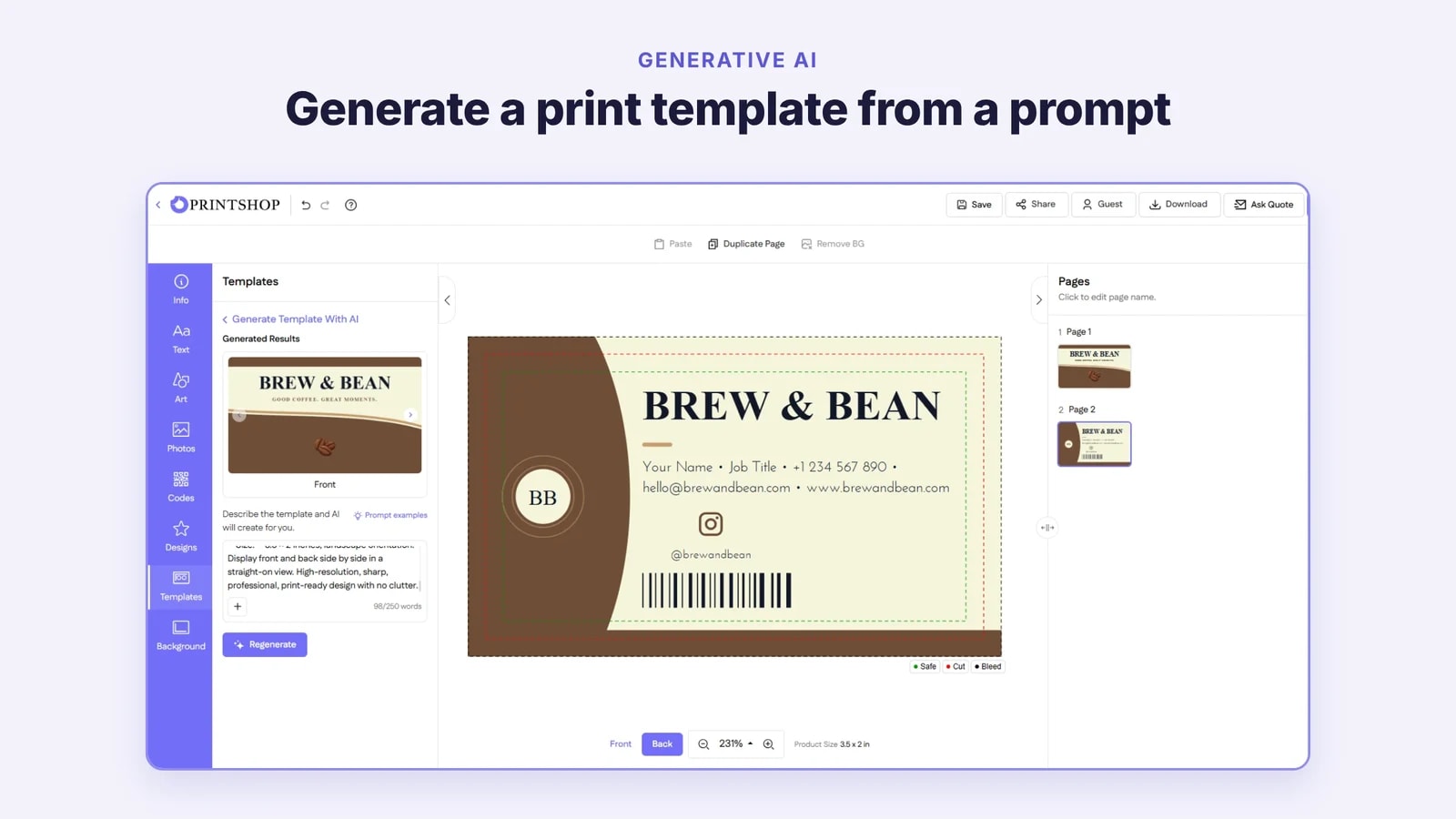
Where to find it: The Generate Template With AI button in the Templates panel.
What your customer enters: A prompt of up to 250 words. They can also upload a reference image, paste a URL (a website, LinkedIn page or any brand page) to create matching designs, add their own brand colors by color code, and pick fonts from the font library.
What they get: A full print template that fits the canvas page size, including products with variable page sizes. Multi-page templates open in a full-screen view with a page carousel.
Template variations: In the admin template builder, you generate one template and create design variations from it, changing colors, patterns, fonts, layout and images. This helps uniform and jersey manufacturers offer one design in many colorways and styles.
Your control: Turn Template Generation on or off for each store.
b. Clipart Generation
Where to find it: The Generate Art With AI button in the Art panel.
What your customer enters: A prompt. They can also upload a reference image, paste a URL (a website, LinkedIn page or any brand page) to create matching designs, add their own brand colors by color code, and pick fonts from the font library.
What they get: New clipart on demand, which they drag straight onto the canvas.
Your control: Turn Clipart Generation on or off for each store.
c. Design Generation for Promo Products
Where to find it: The Generate Artwork With AI button in the Designs panel, and Generate Template With AI on merchandise products.
What your customer enters: A prompt, plus the colors and fonts they want. If they pick no font, the artwork uses your store's default font.
What they get: Artwork that keeps its text colors, and merchandise templates that cover every side of the product.
Your control: Turn Artwork Generation on or off for each store.
Generated templates and artwork show up in Recently Used, so customers can find them again.
Why it matters: Customers get a ready design in seconds instead of starting from scratch. You offer AI design without building your own template library for every idea.
Best for: Stores whose customers start without a ready template.
4. AI Image Tools: Fix and Finish Images Inside the Design Studio
The problem: When an image was too small or the wrong shape for a product, your customer had to find another image or edit it outside DesignO. After a size change, artwork could also be cut off or leave empty space.
What is new:
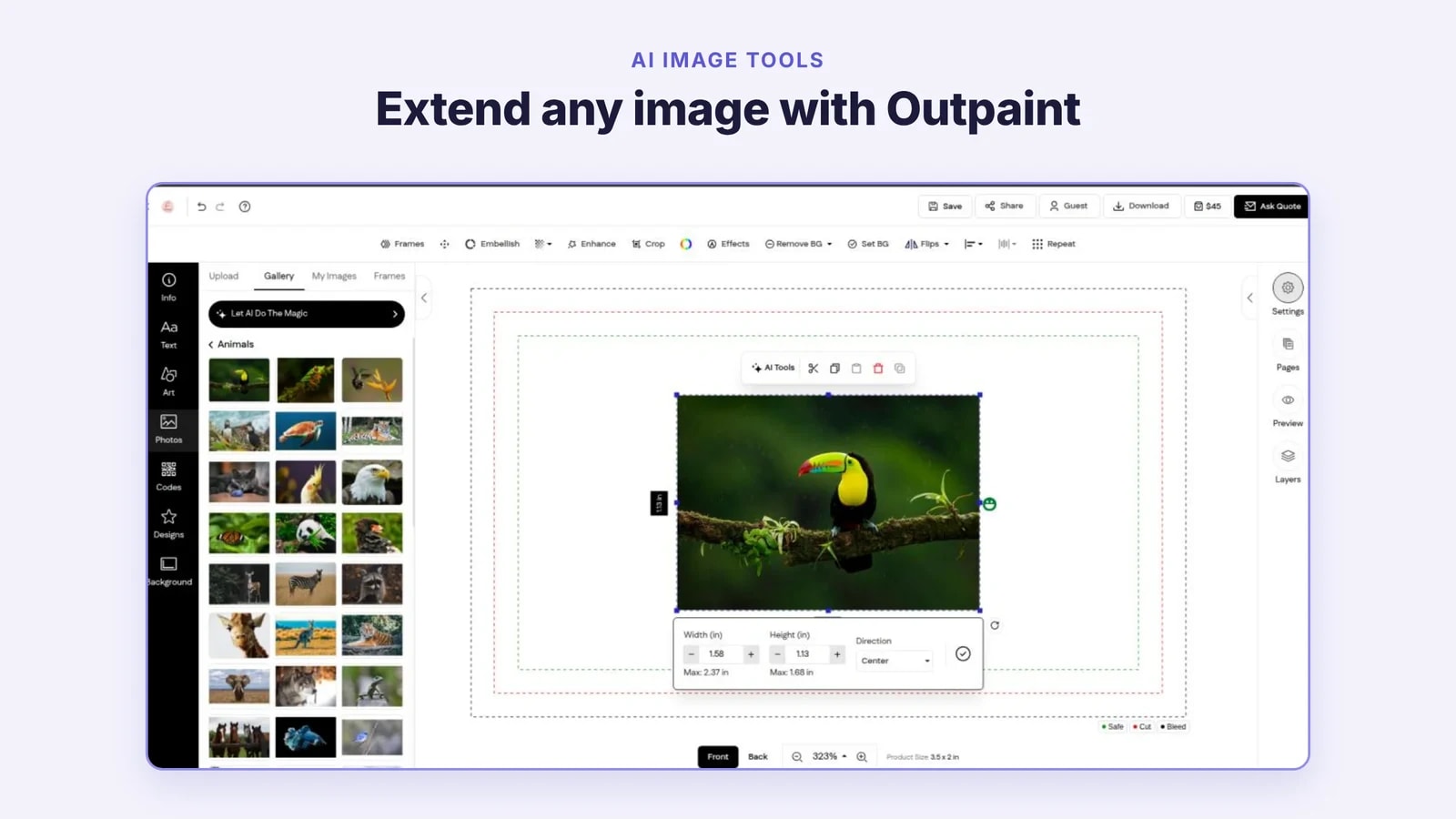
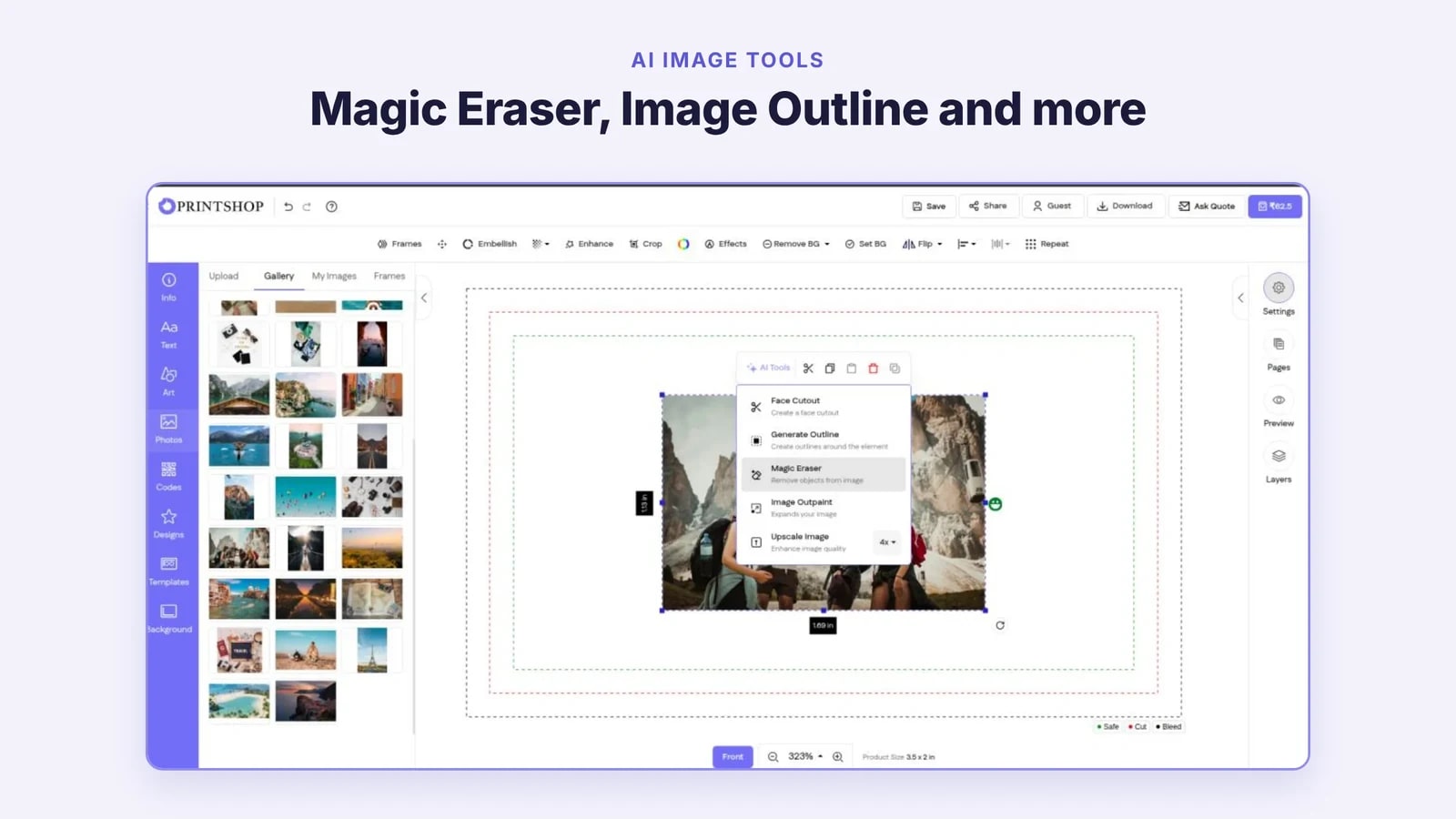
Outpaint: Most customer photos are taken on a phone, so they’re tall and narrow. When that photo has to fit a wide product like a banner or a landscape canvas, Outpaint extends it. The customer picks how much wider or taller it should be, and AI fills in the extra space to match the photo. Each side can grow up to 1.5 times its current size.
Template auto-resize: When a customer changes the product size, the template artwork is resized to fit. If the new size has a different aspect ratio, the customer is asked to confirm first. Round corners and die-cut lines are refitted.
Magic Eraser: The customer brushes over the area to remove, and AI does the rest.
Image Outline: Adds an outline around images, text, circular text, artwork and designs.
Right-shaped AI images: When customers create an image with AI, they can ask for a landscape, portrait or square image, so it fits the shape of the product. They can then drag it straight onto the design.
Why it matters: Customers can fix a photo that’s the wrong size or shape right inside the editor, without Photoshop or a designer.
Best for: Stores whose customers upload their own photos, especially from their phones.
5. Ask Quote From the Product Detail Page
The problem: Customers with special requirements had no direct way to request a quote from your store, so you handled these requests by email.
What is new:
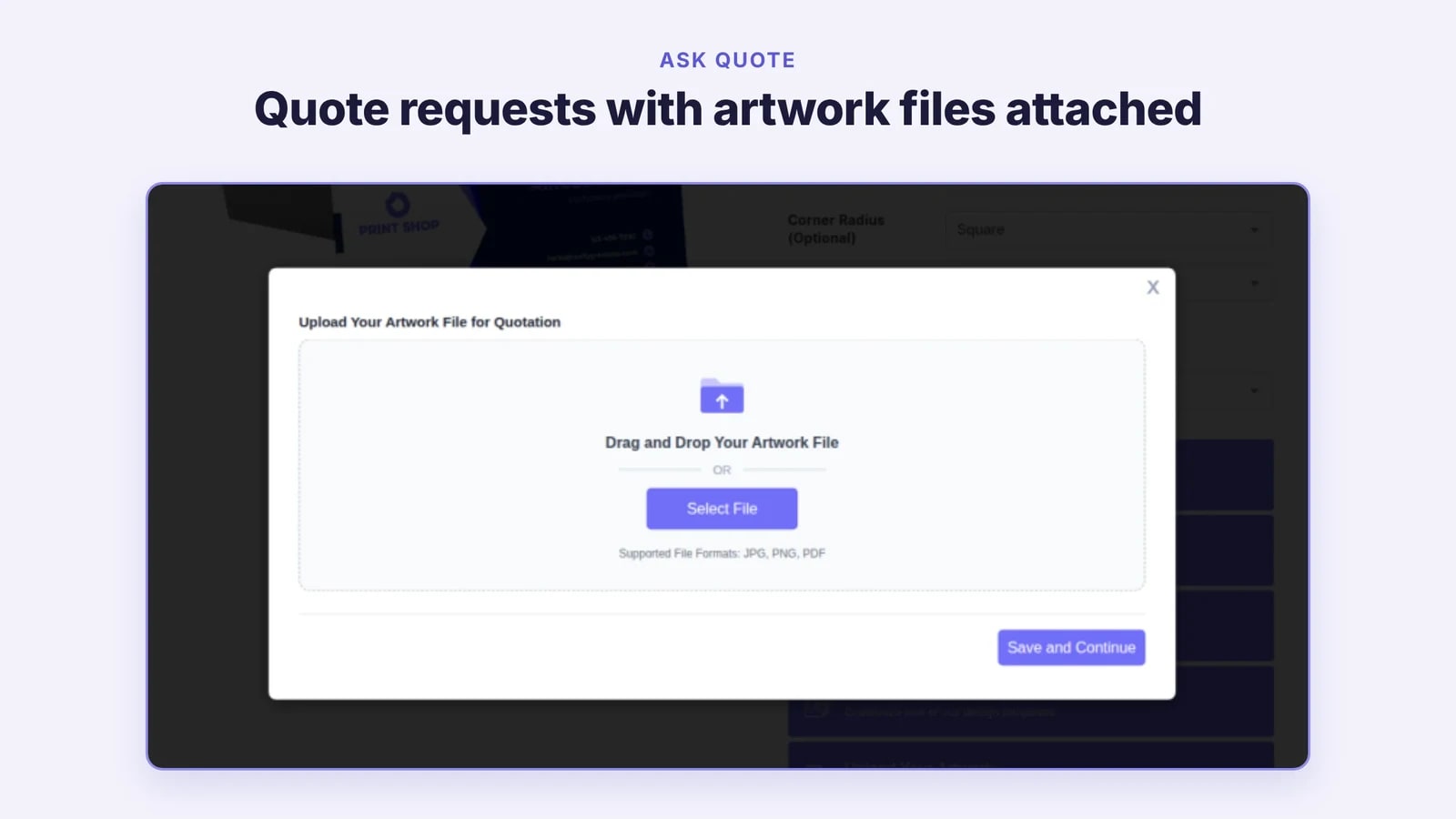
Ask Quote button: You enable Ask Quote per product. The button shows on the product page on WordPress, BigCommerce, Shopify and Magento. It is also available in the Design Studio and in Quick Edit.
Files and notes: Customers can attach several artwork files and add a note of up to 500 words.
Price included: The quote is saved with the product page price, calculated on the server.
Settings per store: Each store has its own Ask Quote button colors, terms and conditions, thank-you page and redirect URL.
Quote to order: In admin, you can download the design from the quotation list and turn a quote into an order.
Why it matters: Ask Quote gives you a new sales channel for custom and large orders. Quotes arrive with files and price, ready for your sales team.
Best for: Print businesses that take custom and large orders.
6. Quick Editor Redesigned
The problem: Quick Edit looked and behaved differently from the Full Editor, had layout problems on small screens, and lacked brand kit, spot color and quote features.
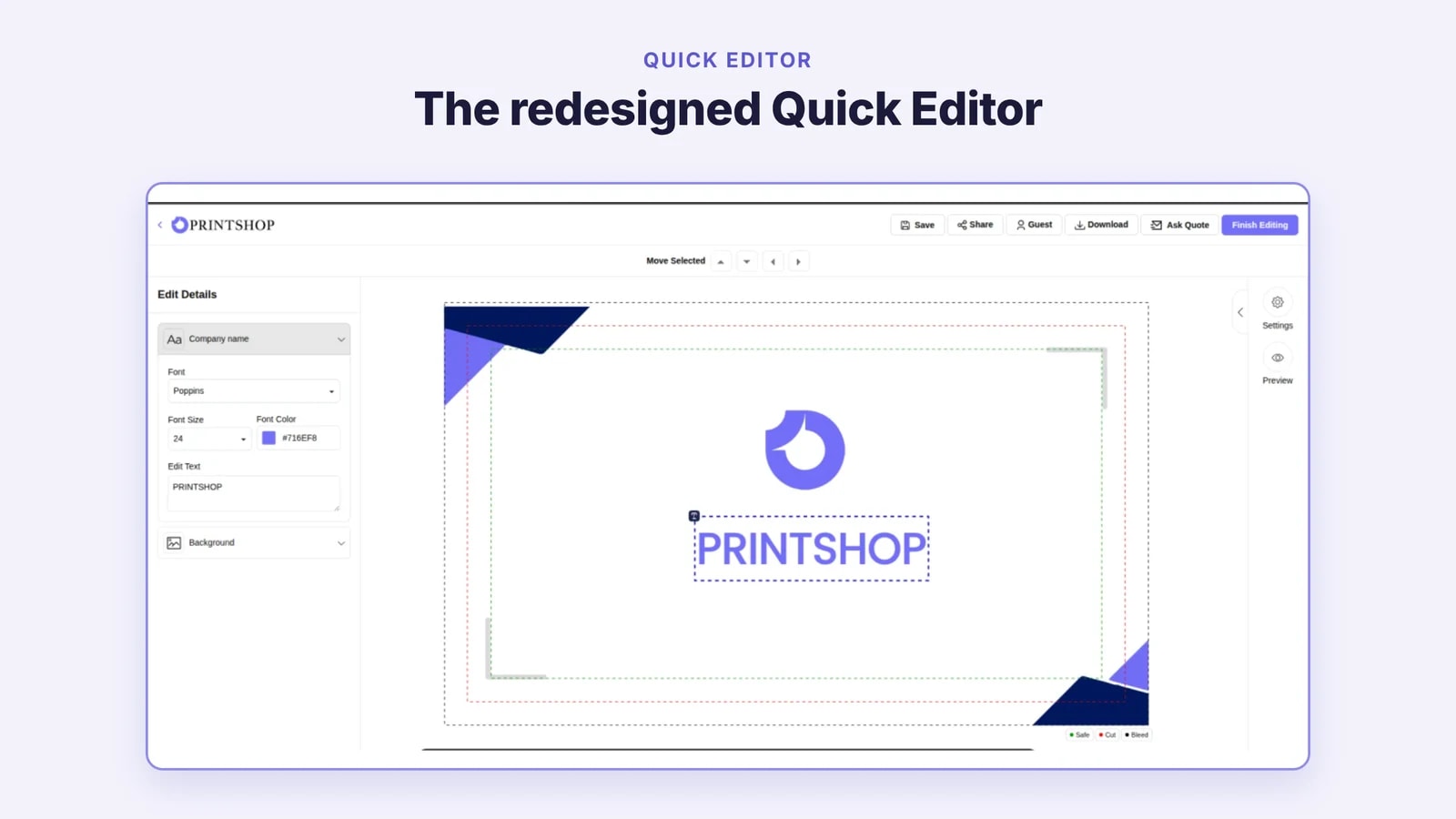
What is new: We rebuilt Quick Edit on the Full Editor structure.
New header: Save/Share, account, Ask Quote and Finish Editing.
New panels: An Edit Details panel, a background panel and a preview panel with download.
Photobox controls: Upload, crop, rotate, move and remove white.
More tools: A brand kit, spot colors and a multi-style paragraph editor.
Responsive layout: Quick Edit now works on mobile.
Browse Templates: Customers can open any template in Quick Edit.
Why it matters: Your customers get a consistent editing experience across the Full Editor and Quick Edit, on any screen.
Best for: Printers who serve corporate clients that need controlled personalization with minimal editing options.
7. 3D Configurator and Design Tool Feature Control
The problem: Some products don’t need designing at all. They only need configuring. A customer buying a sofa just picks the material, the color and a few preset options, and wants to see the result in 3D. Until now, DesignO had no way to offer that. Every product opened with a design canvas and the full set of design tools, which only got in the way for a product like this.
What is new:
You can now set the design tool to 3D Configurator mode for configurable products.
3D Configurator mode: For configurable products, turn on the “Keep 3D only” option in the personalization profile. The product then opens as a 3D configurator instead of a design canvas. Customers choose from the options you set, such as materials and colors, and see each change on a live 3D model. It works on desktop and mobile.
Feature control: Choose which design tools each product shows, such as text shapes, clipart, codes, frames, crop and effects. A simple product can get a simple tool.
Left panel order: Set the order of the tabs in the left panel, so the tools customers need most come first.
Why it matters: You can now sell configurable products like furniture through DesignO, not just products that need designing. Customers get a simple buying experience with only the choices that matter, and the full design tool stays on the products that need it.
Best for: Merchants selling products that customers choose by look and finish, like furniture, where a full design tool would be too much.
8. Product Population Made Easy: Product Import, Bulk Update and Configuration
The problem: Large catalogues and font libraries had to be set up one item at a time. Changing the same setting on many products meant opening and saving each product separately.
What is new:
Product and font import: You import products and fonts from CSV files, including merchandise personalization and color sides. Each import is checked, gives one standard result summary and is saved in an import history.
Bulk product update: You select many products in the product grid and update common settings in one action. Only the fields that apply to the selected product type are offered.
Why it matters: Hours of manual setup are replaced by one import, and catalogue changes take a fraction of the effort.
Best for: Merchants with large catalogues or several stores.
9. DesignO Studio Made Faster
The problem: When a customer clicked Personalize, a whole new page opened and the design tool loaded everything at once, even features that product didn’t use. Customers waited several seconds before they could start designing.
What is new: Personalize now opens the Design Studio in an overlay on the product page on all four platforms. The tool loads only what the product needs. In our staging tests on WordPress, the time from product page to tool ready went from about 7 to 8 seconds down to about 3.5 to 4.5 seconds.
Why it matters: Your customers start designing sooner, which reduces drop-off on product pages.
Best for: Every store, especially those with mobile shoppers.
10. Security and Reliability
The problem: When the main output service was down or timed out, output downloads and order output failed.
What is new:
Security review: We scanned DesignO Admin, the Design Studio, the Upload tool, the Output service and all four storefront plugins against the OWASP Top 10, and fixed every finding.
Stronger defaults: The release adds security headers with a Content Security Policy, hardened session cookies and checks on free-text input such as AI prompts and quote notes.
Output failover: Output generation now switches automatically to a backup output service when the main one fails.
Your storefront, Design Studio, Quick Edit and Upload tool flows work as before.
Why it matters: You get a lower risk of data exposure for your business and your customers, and fewer failed output jobs.
Best for: Merchants whose customers run security reviews.
11. Shopify App and Magento Extension Updates
The problem: On Shopify, your store’s discount codes didn’t apply to products priced by DesignO, so you couldn’t run promotions on personalised products.
What is new:
Shopify discounts: Native Shopify discounts now work for DesignO-priced items, and DesignO orders store the amounts Shopify charged.
Easier Shopify setup: You switch DesignO on from your Shopify theme editor, with no theme code to edit. A ready-made block adds the DesignO buttons to your product pages, a setup checklist walks you through each step, and your customers get a My Designs page in their account to find their saved designs.
Magento multi-store: Each store keeps its own customers, designs, quotes and orders, so you can run several Magento stores from one DesignO account.
Why it matters: You can run Shopify promotions on personalised products, and run several Magento stores safely on one DesignO account.
Best for: Shopify merchants who run promotions and Magento merchants with several stores.
Frequently Asked Questions
The release covers DesignO Admin, the Design Studio, Quick Edit, the Upload tool and the storefront plugins for WordPress, BigCommerce, Shopify and Magento.
Yes. You can turn Template Generation, Clipart Generation and Artwork Generation on or off for each store.
No. As of now, Generate Template With AI is available for print products and merchandise products.
Each side can grow up to 1.5X of its current size, with a limit of 14000 px on desktop and 8000 px on phones. Large expands can take about 50 seconds. If the AI service takes longer than 90 seconds, the customer needs to try again.
Yes. Spot colors are kept in saved designs and passed to output.
Already a DesignO customer or exploring DesignO? See how they'll look on your own storefront! Book a FREE POC today!
Trusted by 2000+ Print Businesses
Ready to See It in Action?
Explore our print shop platform at your convenience. Request a demo URL to experience the storefront, design tool, pricing, and much more.