



Automate Email Order Entry Into Your Print Order Management System
 Abhishek Agarwal

Blog article content
Customer emails are still one of the most common ways print orders arrive, and one of the slowest to process. This walkthrough shows an n8n workflow that reads each email, checks the SKU against your DesignO catalogue and creates the order through the DesignO API. Incomplete emails get an automatic reply, wrong SKUs go to Slack, and your team only handles the exceptions.
Not every customer orders through your storefront. A lot of them still just send an email:
“Can you ship a few jackets to our office? We’ll pay by card.”
Someone on your team then reads it, works out what’s being asked, looks up the product, types the order into the system and writes back. Multiply that by a busy week and you get the usual problems:
❌ Order details buried in free-text emails
❌ SKUs, quantities and prices checked by hand
❌ Long back-and-forth threads for missing information
❌ Orders re-typed into DesignO, one field at a time
Order entry automation takes those repetitive steps off your team’s plate. The software reads, checks and enters the order. People step in only when something needs a human decision.
What Is Email Order Entry Automation?
Email order entry automation reads incoming customer emails, decides whether each one is actually an order, checks the details against your product catalogue, and creates the order in DesignO once everything is in place. If something isn’t ready, the email gets a clear next step instead of sitting unread in someone’s inbox.
Under the hood it’s two things working together: AI email parsing, which pulls structured data (customer, SKU, quantity, price) out of messy text, and a workflow tool that runs the checks and calls the right APIs. This walkthrough uses an n8n workflow, but the same idea works on Zapier or Make.com.
How the Workflow Works
DesignO is API-first. A workflow platform can read its product catalogue and create orders through the order creation API, so no changes to DesignO itself are needed.
A. What the Customer Does
1. Sends an email. In plain words, in whatever format they normally write.
2. Includes the order details. DesignO needs customer and contact information, shipping and billing address, SKU and quantity, price, currency and payment mode. If something is missing, the workflow asks for it.
3. Gets a reply in the same thread. Either an order confirmation or a short list of what’s still needed.
B. What Happens Behind the Scenes
1. Gmail receives the email. The workflow checks the inbox every minute for emails that match keywords you choose, for example “order” or “PO”.
2. AI classifies it. Each email is labelled as an order, not an order, or uncertain.
3. Details are extracted and validated. A second AI step pulls out the customer details, product, SKU, quantity and unit price. The workflow then checks that every required field is there.
4. The SKU is checked against DesignO. The workflow fetches your live catalogue from the DesignO API and matches the SKU and product in the email.
5. The order is created. The workflow sends the prepared payload to the DesignO order creation API.
6. The customer is notified and the email is labelled. A confirmation goes out, and a “DesignO-Processed” label stops the same email from being picked up twice.
Every Email Ends With a Defined Outcome
This is the part that makes automated order processing safe to run on a real inbox. Nothing disappears silently.
Email type | What happens |
|---|---|
Complete order | Order is created in DesignO and the customer gets a confirmation |
Missing information | Customer gets an auto-reply in the same thread listing what’s missing. No order is created |
Invalid SKU | Order is stopped and an alert goes to your team’s Slack channel |
Not an order | Email is marked as processed. No order, no reply |
Uncertain | Your team is notified on Slack. No order is created |
Walkthrough: Four Emails, Four Outcomes
We sent four different emails to the same workflow and followed each one from inbox to result.
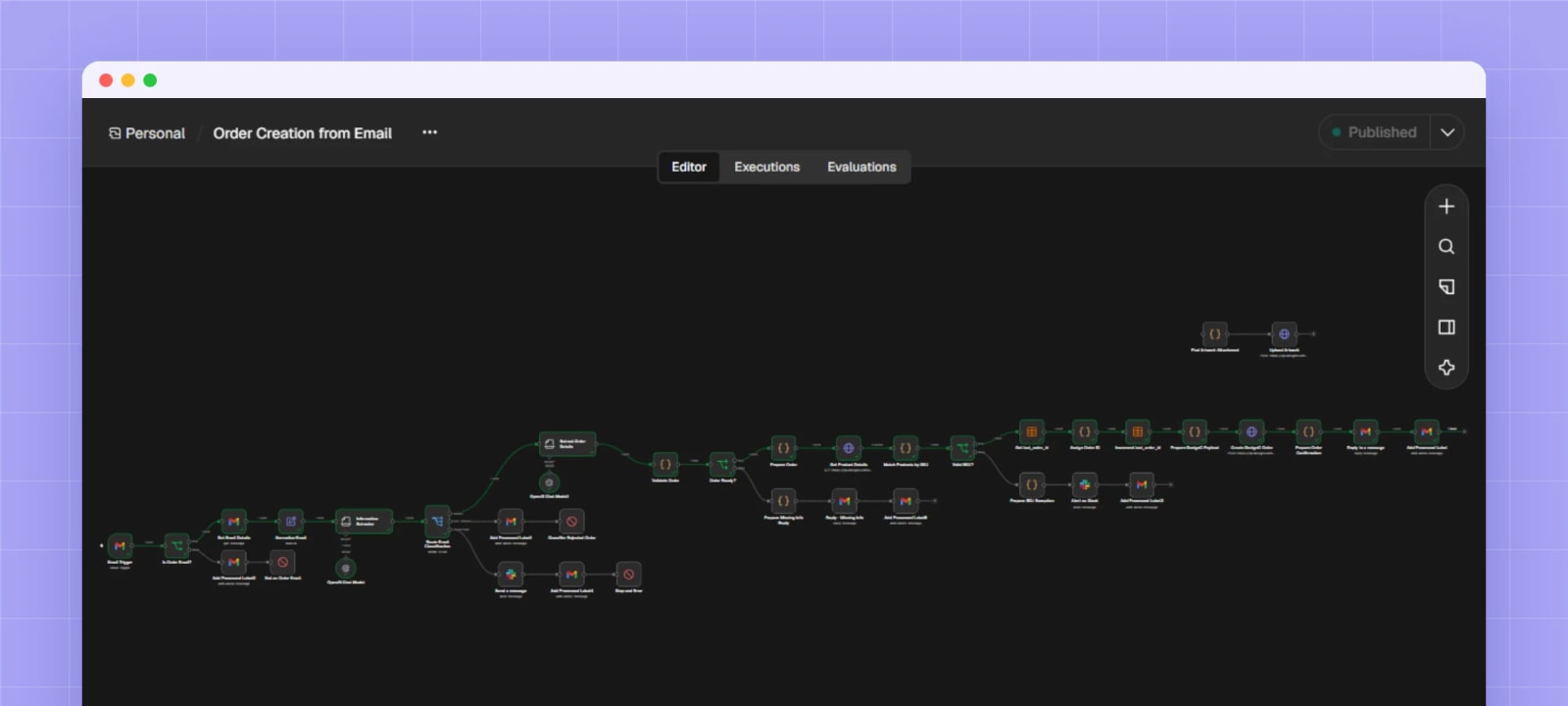
Step 1: The workflow in n8n
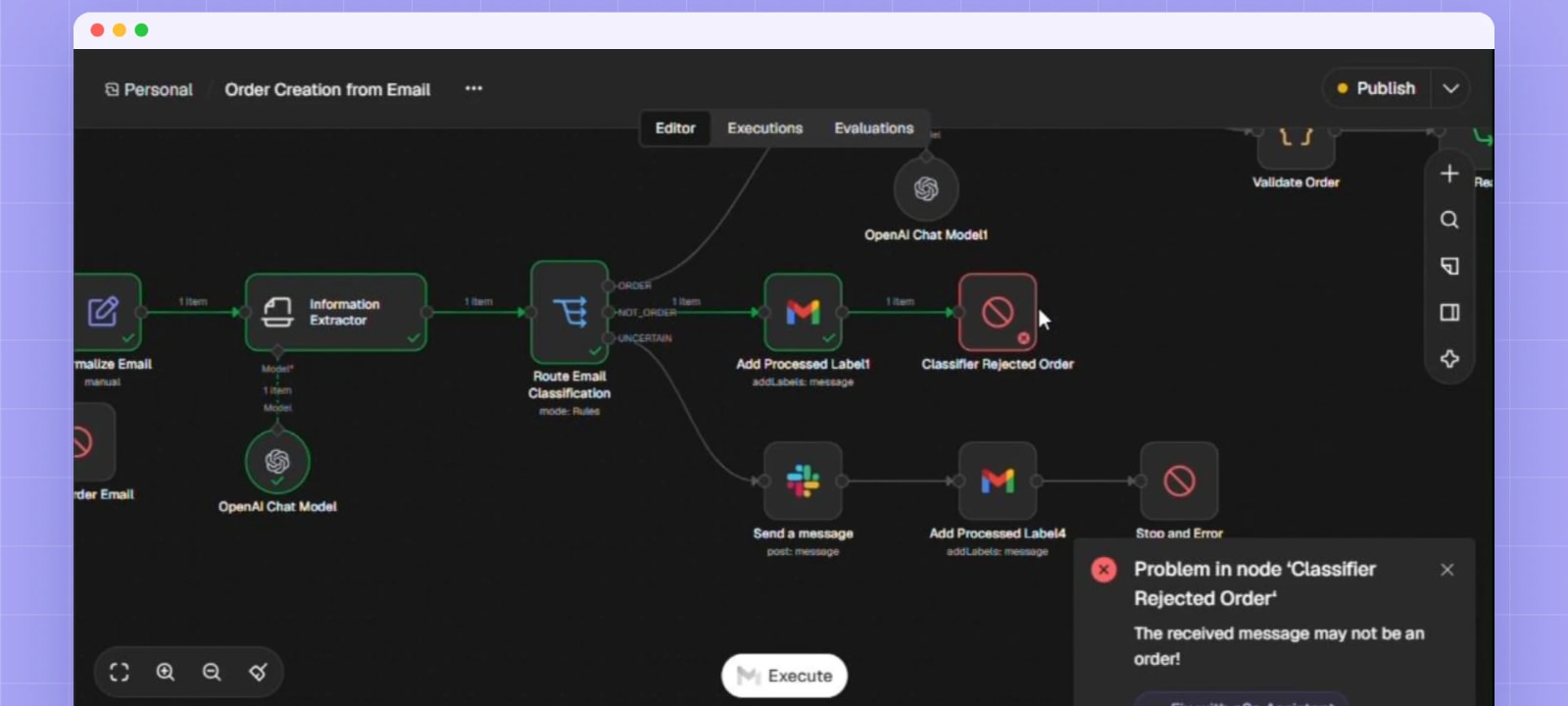
It looks busy on screen, but the path is simple. A Gmail trigger runs every minute and picks up matching emails. The workflow fetches the email, cleans up the text, and an AI information extractor sends it down one of three routes: order, not an order, or uncertain.
Step 2: A complete order
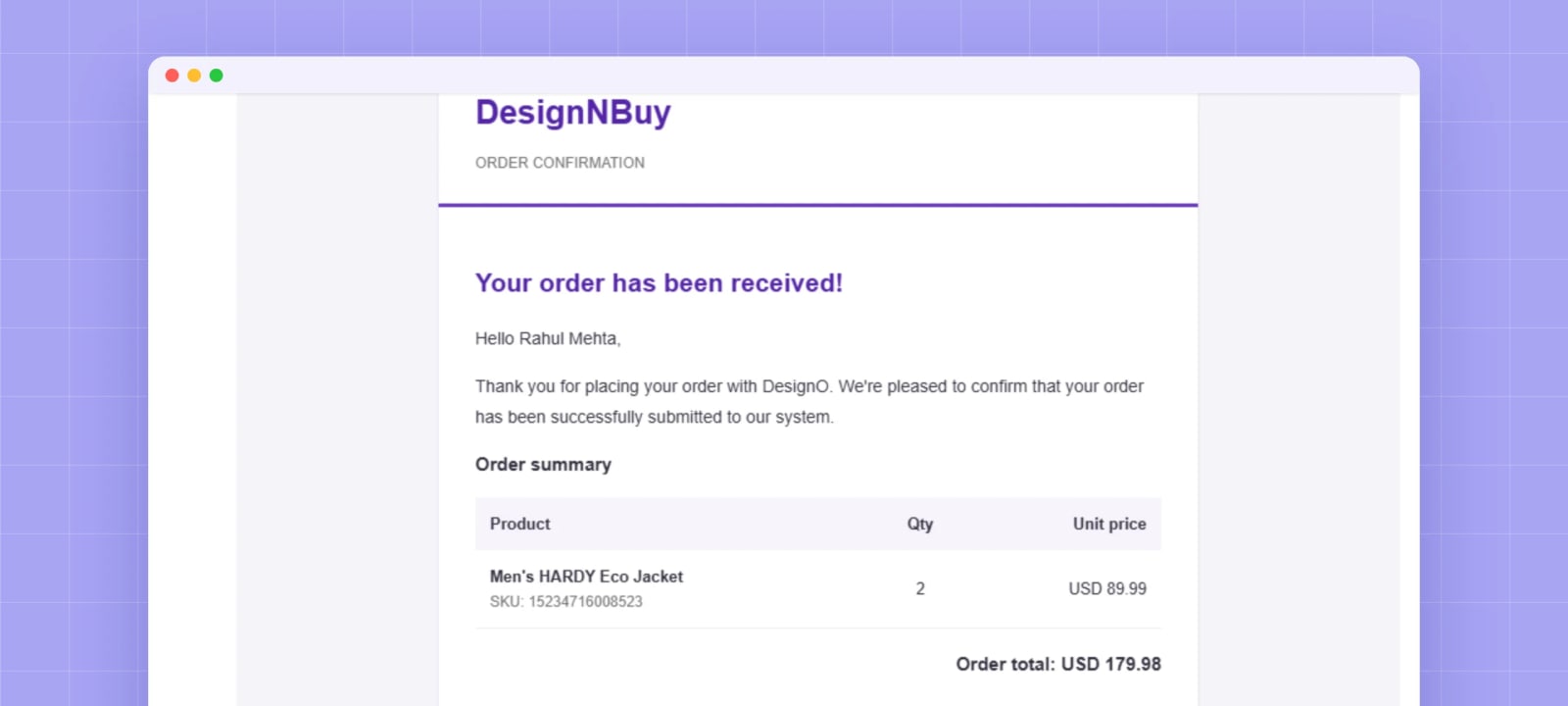
The email: an order for Men’s HARDY Eco Jackets with the customer’s details, SKU, quantity, unit price and an artwork PDF attached.
The AI classifies it as an order. All required fields are present and the SKU matches the DesignO catalogue. The workflow creates the order, replies to the customer and applies the processed label.
The customer receives an HTML confirmation with quantity, unit price, an order summary with the SKU, and the order total. You can change the wording and design of this message for each client.
Over in the DesignO admin, the order is already filled in: amount, item, customer name, payment mode and shipping method. From here your team works it like any other order, through jobs, statuses and customer messages in your print order management software.
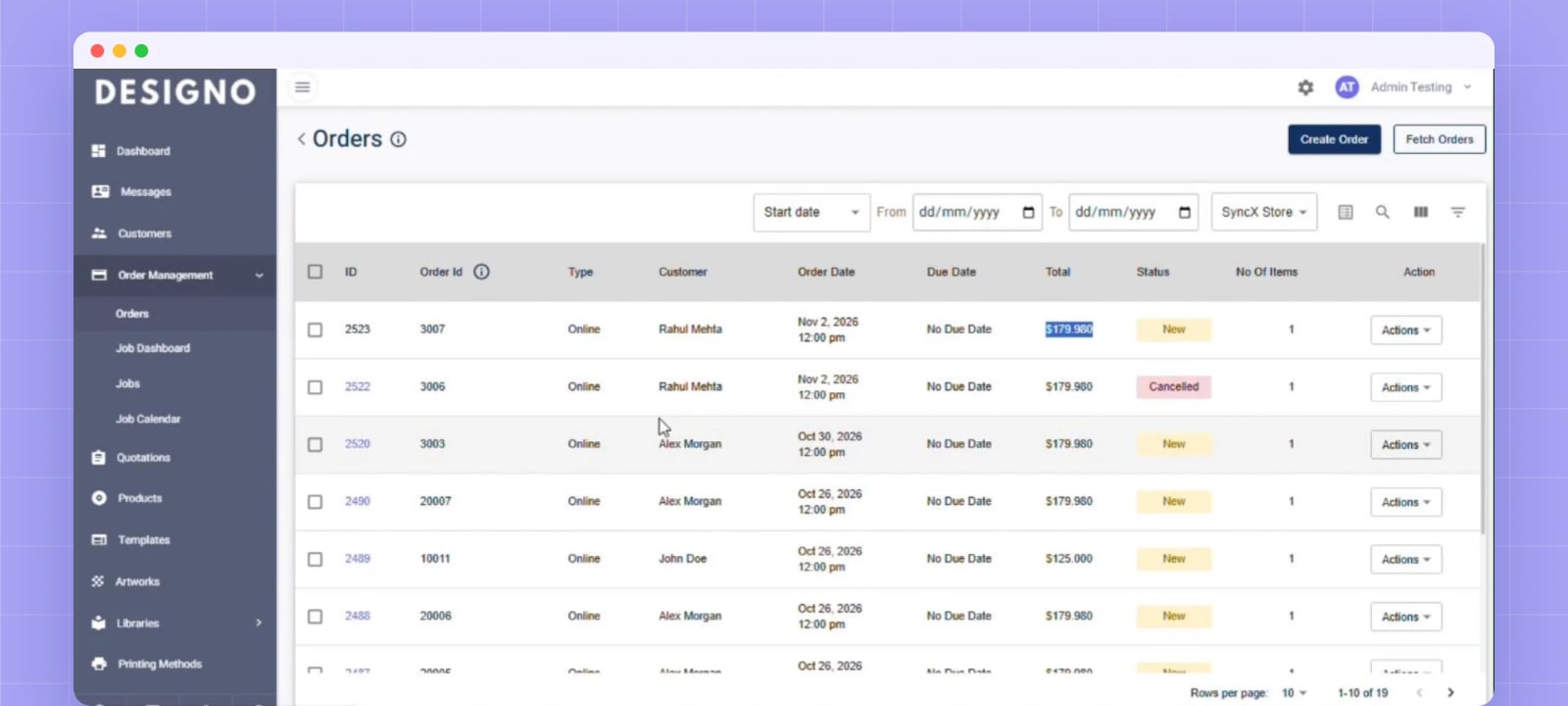
One honest note: in this version, the workflow doesn’t upload artwork. We attached the PDF to the order manually in the admin, added a due date and submitted it.
Step 3: An invalid SKU
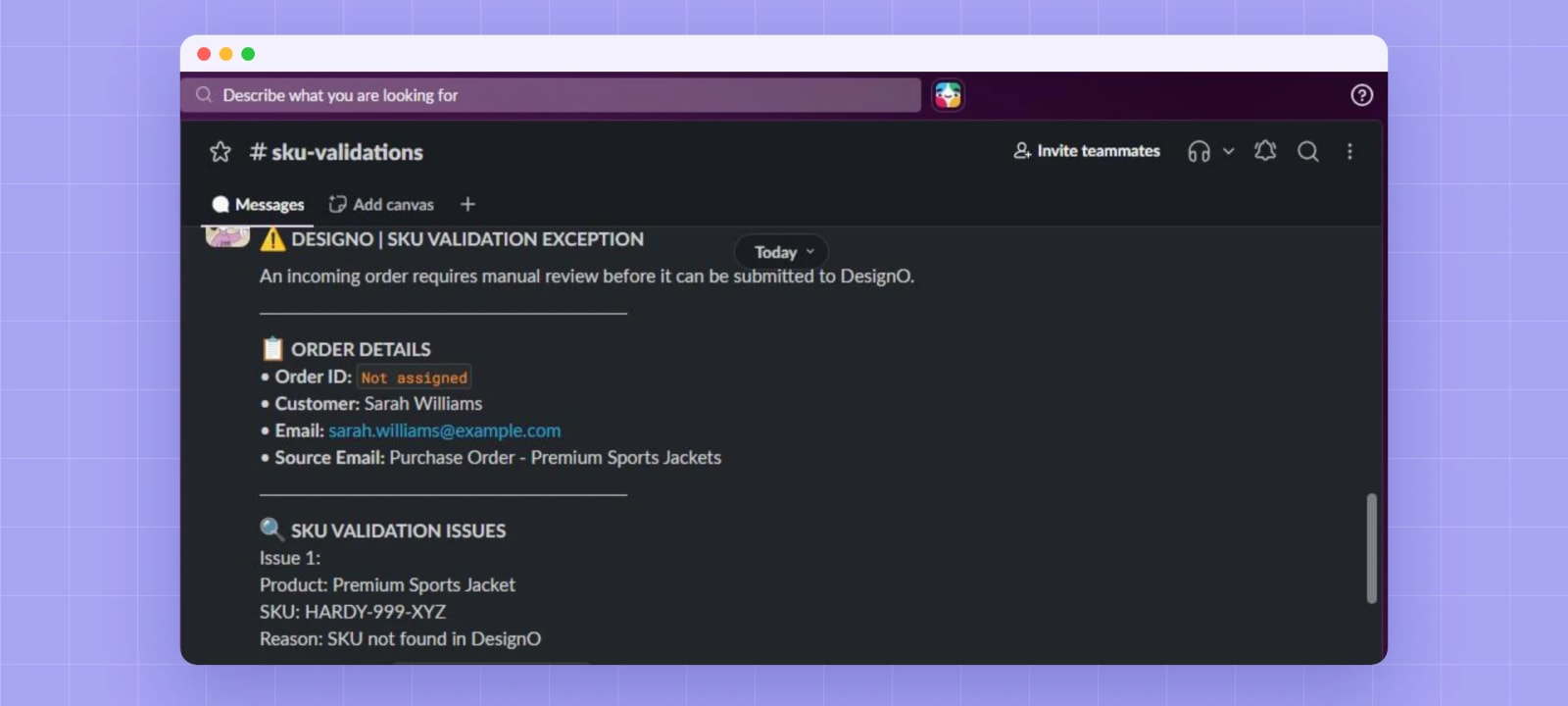
The email: a valid-looking order with a SKU (HARDY-999-XYZ) that doesn’t exist in the catalogue.
The workflow classifies it as an order and extracts the details, then pulls the catalogue from the DesignO product API. The SKU doesn’t match, so no order is created.
Instead, it raises a SKU exception and posts an alert in a dedicated #sku-validations Slack channel. The alert shows that no order ID was assigned, plus the customer details, email subject and the SKU problem. Your team can then check whether it’s a customer typo or a product setup issue and reply.
Step 4: Missing details
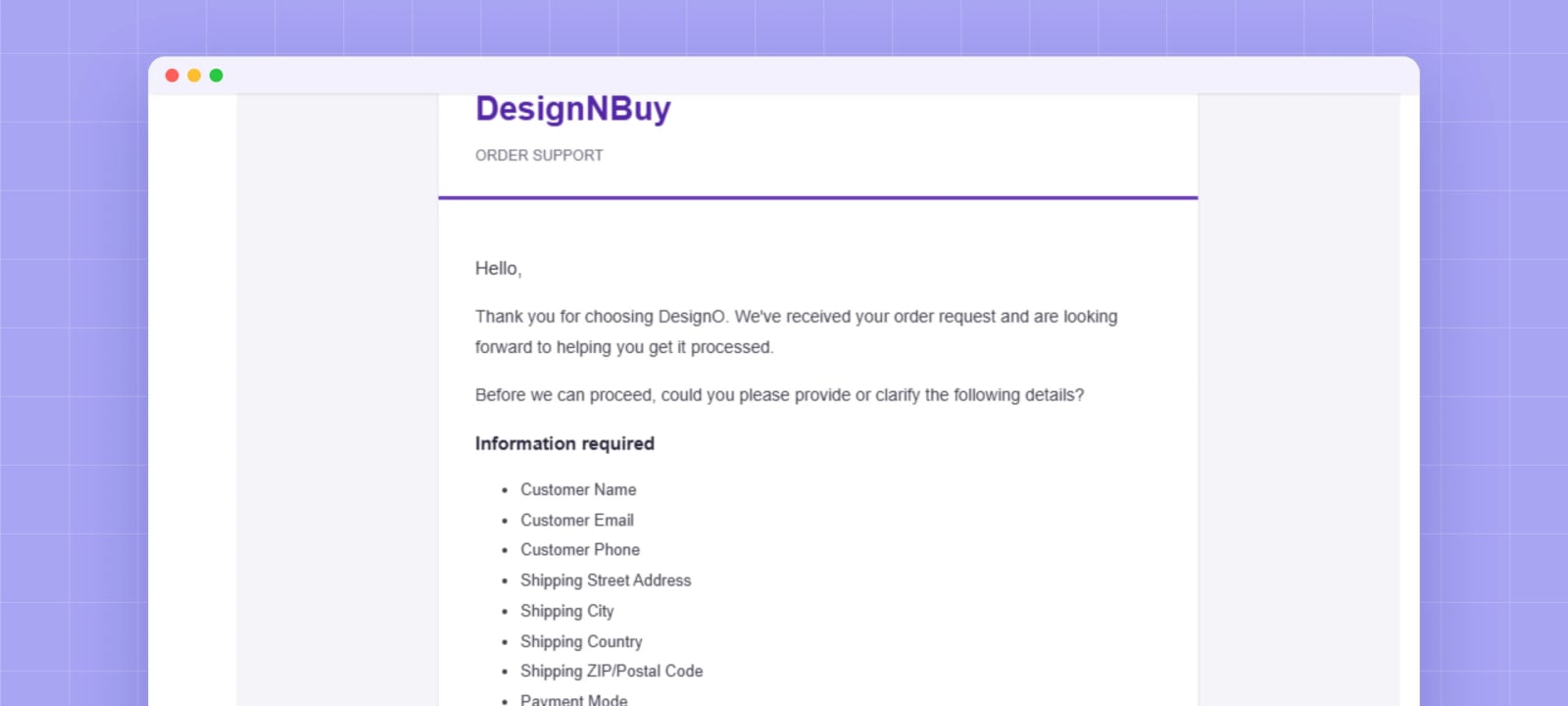
The email: a request for 25 jackets with a valid SKU, but no customer name, contact details, addresses, unit price, currency or payment mode.
The AI still sees it as an order, but validation flags the gaps. The workflow writes an HTML reply listing exactly what’s missing, sends it in the same thread and marks the email as processed. No half-finished order lands in DesignO.
Step 5: An order inquiry
The email: a customer asking which colours are available and whether discounts apply. No SKU, no order details, but “order” is in the subject line, so the trigger picks it up.
The AI classifies it as not an order. The workflow marks it as processed, sends no automatic reply and stops. Your team answers it like any normal enquiry.
Why Manual Email Order Processing Breaks Down
Customer emails are unstructured. Some have typos, some leave out half the details, some quote a SKU that doesn’t exist, and some are perfectly good orders that didn’t need a person at all. Today, your team has to read every single one to tell them apart.
Each order then needs pricing, quantity and product checked before it goes into the system, and every missing detail adds another email to the thread. When a team is stretched, that’s where delays and wrong orders creep in.
That’s not a people problem. It’s a workflow problem. Order processing automation makes every email go through the same checks, in the same order, every time.
Benefits of Automating Sales Order Entry
A. For Print Businesses
Faster intake: Complete orders appear in DesignO without anyone typing them in.
Fewer errors: Details are carried over by software, not re-keyed by hand.
Always-current catalogue checks: SKUs are validated against the live DesignO catalogue on every run, so product changes are picked up automatically.
Exceptions only: Invalid SKUs and uncertain emails land on Slack. Everything else takes care of itself.
Room to grow: Add more checks and flows as your needs change, alongside your other print workflow automation.
B. For Your Customers
Clear replies: A confirmation with an order summary, or a list of exactly what’s missing.
Same thread: Replies arrive in the conversation they started, not a new one.
Consistent service: Every email is handled the same way, with messages you can brand per client.
Who Is It For?
Trade printers and print service providers who still get a steady flow of orders and purchase orders by email
Businesses taking orders from clients, resellers and suppliers in free-form messages
Teams already running DesignO who want email orders to land in the same admin as storefront orders
Teams on Slack who want exceptions flagged where they already work
If most of your B2B orders arrive as emailed POs, this is also a practical first step toward purchase order automation without changing how your clients buy.
What to Plan For Before Going Live
Keyword filter: The keywords you set decide which emails enter the workflow. Anything outside them is never classified.
AI classification: Test with your own real customer emails, and decide who reviews the uncertain ones.
Artwork: Not part of this workflow yet. Files are added to the order in the DesignO admin.
Pricing: The walkthrough uses the unit price from the email. Tax, shipping and discounts aren’t calculated.
Catalogue data: Confirm which product fields your DesignO catalogue API returns for SKU matching.
Order IDs: The demo assigns its own sequential ID. For higher volumes, use an atomic counter.
Testing: Send a test email for every outcome before switching it on.
Ownership: Decide who maintains the workflow and watches the Slack channels.
How to Get Started
List every manual step between a customer email and a DesignO order.
Pick an automation platform: n8n, Zapier or Make.com.
Connect Gmail and the DesignO product and order APIs.
Build the first flow: classify the email, validate the details, create one order.
Add the exception paths: a missing-details reply and a Slack alert for invalid SKUs.
Test with a sample email for each outcome.
Customise the confirmation and reply messages for your clients.
Email is only one way orders arrive. If you also sell through a storefront, DesignO’s web to print software puts storefront and email orders in one admin, and its quick and bulk ordering tools help B2B buyers who’d rather reorder online than write an email.
See It on Your Own Orders
Want to see how DesignO can turn your customer emails into orders? Book a free demo and we’ll walk through it with your products and SKUs.
Frequently Asked Questions
Abhishek Agarwal
Co-founder | CMO, DesignNBuy
Abhishek Agarwal (Co-founder/CMO, DesignNBuy) has 15+ years of IT & web-to-print experience. He specializes in sales, marketing, and strategic business growth, delivering innovative solutions to global printers and mentoring teams.
All PostsRelated Posts
Print Workflow Automation: How DesignO Connects to Jira, Slack and WhatsApp Using N8N
6 Best CPQ Softwares for Print and Packaging to Know About in 2026