7 Web to Print Editor UX Mistakes That Cost You Sales
Most web-to-print editors leak conversion in the same seven ways: clunky mobile UX, popup text editing, hidden canvas, buried navigation, popup previews, slow load times, and unclear add-to-cart paths. Audit yours, then see how DesignO fixes each one.
 Tavishi
Blog article content
A customer who opens your web to print editor is the highest-intent visitor on your storefront. They have already picked the product, clicked “personalize,” and started designing, which puts them one step away from checkout. That is as close to a sale as you get without a payment confirmation.
Then, without warning, they leave. No error. No complaint. Just a session that quietly ends without an order.
So what do you think are the most common web-to-print editor UX mistakes? What could be the reason your customer left without add ing the personaliozed product to the cart. Check out these seven recurring patterns account for most of the lost sales inside personalization editors:
The mobile editor is treated as an afterthought
Text editing opens in a popup instead of inline
The canvas hides behind UI panels
Common actions are buried in menus
Preview lives in a popup, not beside the canvas
The editor is slow or laggy
There is no clear path from “design done” to “add to cart”
Most product personalization softwares or editors leak conversion in exactly these seven ways. Each of these web to print editor UX mistakes is fixable once you know what to look for. Audit your editor against this list, find your leaks, and fix the ones that matter most.
Why this matters: Personalization is not a nice-to-have feature. It is a proven driver of engagement, conversion, and order value for eCommerce stores, but only when the editor experience holds up its end of the deal.
Mistake 1: Mobile UX Failures Send Web-to-Print Shoppers Straight to the Exit
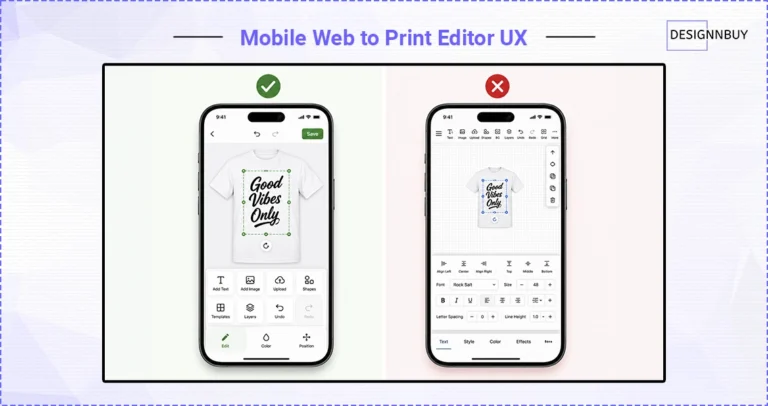 More than 60% of Shopify traffic comes from mobile devices. Most personalization editors are built for desktop, whether the customer is designing a t-shirt, a photo book, or a custom shipping box.
This is one of the most common web to print editor UX mistakes. It is also the most punishing.
What breaks on mobile:
Cramped canvas that is hard to interact with
Controls that are hidden or too small to tap
Touch interactions that fight the editor instead of working with it
Pinch-to-zoom that zooms the browser, not the design
Mobile shoppers who hit these issues do not complain. They leave. Most never come back. There is no second chance on a device switch.
The mobile-desktop time gap is one of the clearest early indicators of a UX problem. If it takes your customer twice as long to personalize on mobile as on desktop, you are losing sales every day.
Audit question: Open your web to print storefront on your phone. Try to personalize a product. Time yourself. If the experience takes 2x your desktop time, you have a problem.
Mistake 2: Popup Text Editing Breaks the Personalization Flow Customers Came For
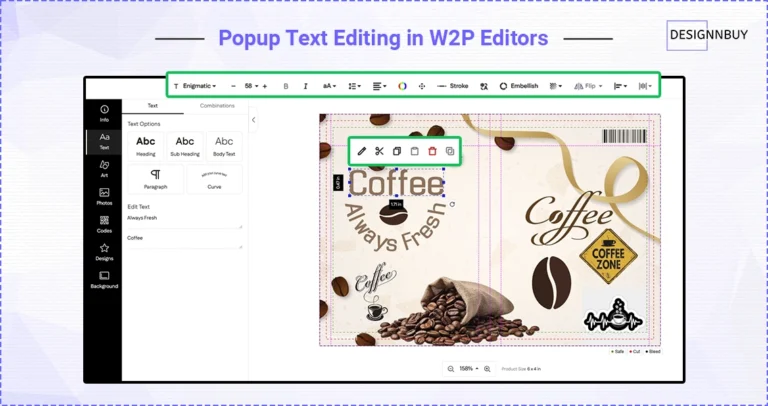 Text is the most-edited element in any personalization session. Names, dates, messages. Customers return to the text field again and again.
Most editors open a popup when a customer clicks on text.
The flow looks like this:
Customer clicks text
Modal opens
Customer edits
Customer hits save
Modal closes
Customer checks the canvas
That is 4 to 6 interactions for a single text edit. On a design with three text fields, that is 15 or more interactions just to fill in names.
Every modal is an exit ramp. A phone notification can pull the customer away. The buying impulse can fade. The session can end without a sale.
This is a web to print editor UX mistake that compounds across every session, every day, across your entire customer base.
The fix: Text should be editable directly on the canvas. The formatting toolbar should surface when text is selected. One click, one edit, done.
Audit question: How many clicks does it take to change one word of text in your online design editor?
Mistake 3: A Hidden Canvas Makes Customers Doubt Their Own Design
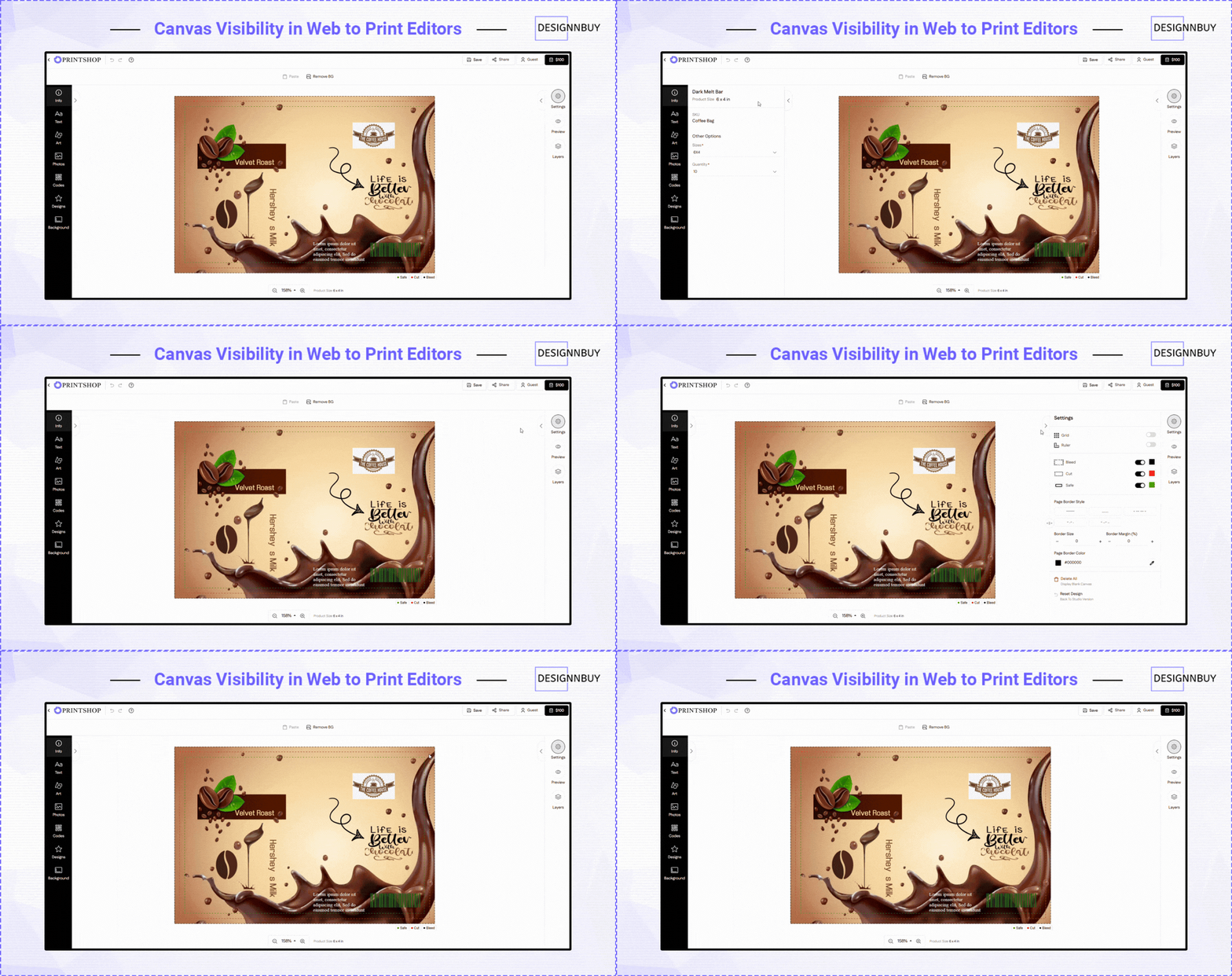 This is one of the subtler web to print editor UX mistakes. But it adds real time to every session.
The pattern:
A customer opens a panel. Colors, fonts, or uploaded images. The panel covers the canvas. The customer cannot see their design while making changes.
So they close the panel. Check the canvas. Reopen the panel. Make another change. Repeat.
Over a 10-edit session, this loop adds one to two minutes of pure, avoidable friction.
Customers who cannot see their design in real time lose confidence. They either abandon the design or commit to something they are not sure about. Both outcomes cost you. One is a lost sale. The other is a refund.
The fix: The canvas should auto-resize when panels open and close. The design should always be visible, at every stage of editing.
Audit question: Open your editor’s color panel. Can you still see your full design?
Mistake 4: Buried Navigation Wears Down Customers Before They Finish Designing
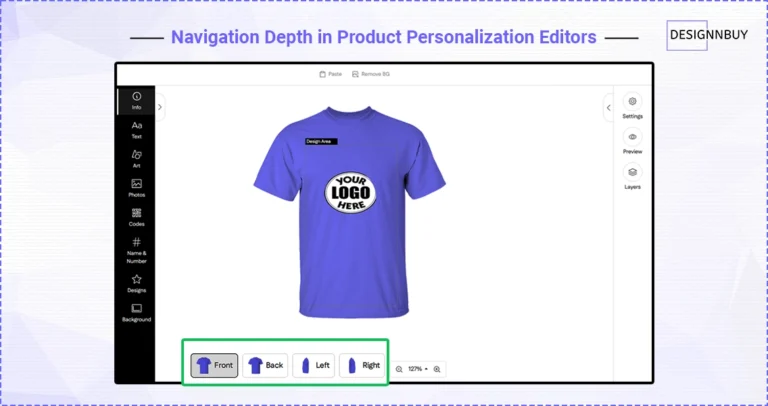 Some web to print editor UX mistakes are not one big problem. They are ten small ones that add up to a customer who is tired before they finish.
High-frequency actions that often take too many clicks:
Switching between sides of a product, like the front and back of a t-shirt or the panels of a custom packaging box
Accessing the layers panel
Moving between pages of a multi-page design
Toggling between product variants
Each of these is a routine action. Customers perform them dozens of times per session. When each one requires a menu dive, the editor starts to feel like work.
No single buried action causes abandonment. But the cumulative friction of ten small delays wears customers down. Their patience runs out before their design is done.
The fix: Put high-frequency actions in persistent, visible navigation. One click should be the rule, not the exception.
Audit question: How many menus does a customer open to switch from the front to the back of a t-shirt, or between the panels of a custom box?
Mistake 5: Popup Previews Force Customers to Edit Blind
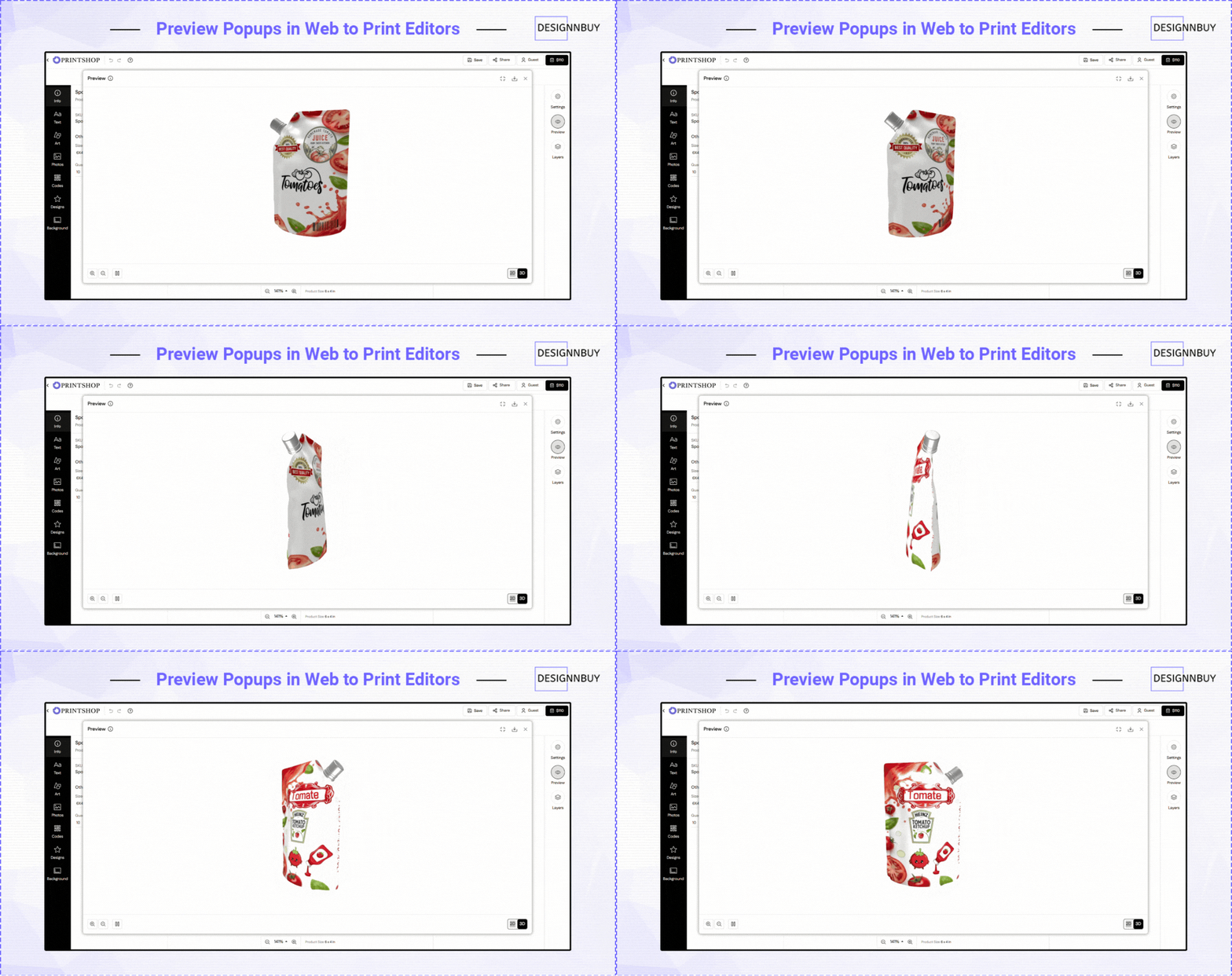 The preview moment is critical. It is when a customer asks: “Is this what I want?”
Most editors answer with a popup.
The customer has to stop editing, open the preview, check the design, close the preview, make a change, and preview again. They are editing blind in between every check.
This is a costly web to print editor UX mistake because it breaks confidence at exactly the wrong moment.
Customers who cannot easily check their design are stuck in one of two bad positions. They abandon (lost sale) or they commit to something they are not fully sure about (refund risk). Neither is a good outcome for your business.
The fix: Preview should sit beside the canvas and update in real time as the customer edits. No popup. No back-and-forth.
Audit question: Can your customer see the preview and make edits at the same time?
Mistake 6: A Slow Canvas Makes Your Storefront Feel Cheap
Slow editors lose sales. This is simple conversion math.
For product personalization editors specifically, lag compounds. A customer makes hundreds of small interactions per session. Each small delay stacks on top of the last.
Common performance culprits:
Heavy canvas libraries that take time to initialize
Uncompressed image previews that slow rendering
Every interaction round-tripping to a server before updating the canvas
There is also a perception problem. A slow editor feels low-quality. Customers project that feeling onto your product, your brand, and the print quality they expect to receive.
The fix: Client-side rendering, smart asset loading, and hard performance budgets. The editor should feel fast from the first interaction.
Audit question: From clicking “personalize” to an interactive canvas, how many seconds does it take? Under three is healthy. Over five is a problem.
Mistake 7: A Missing Add-to-Cart Path Loses the Sale at the Finish Line
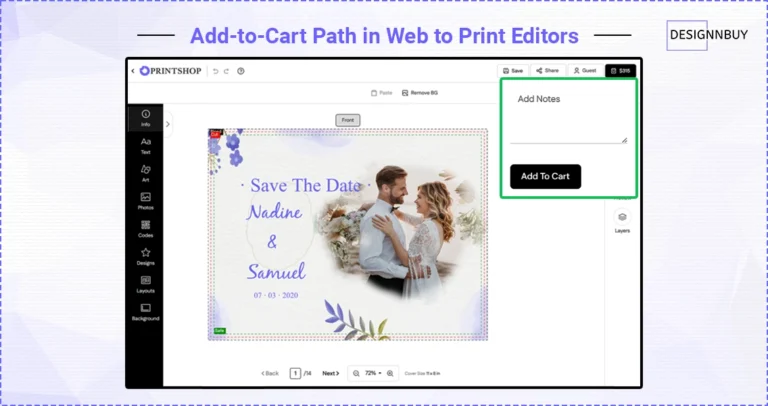 This is the last web to print editor UX mistake on this list. It also happens at peak buying intent, which makes it the most expensive.
The customer has finished their design. They are ready to buy. Then they have to hunt for the add-to-cart button.
Sometimes it is behind a “save” step. Or sometimes it sits next to an ambiguous “done” button. And sometimes it is just hard to find.
This is the worst possible moment to create confusion. The customer’s intent is at its highest. Any uncertainty here can trigger second thoughts. Second thoughts kill conversions.
The fix: A persistent, clearly visible add-to-cart button that surfaces once the design meets minimum requirements. No hunting. No ambiguity.
Audit question: When a customer finishes their design, what is the next thing they click? Is it completely obvious?
What Good Web-to-Print Editor UX Looks Like?
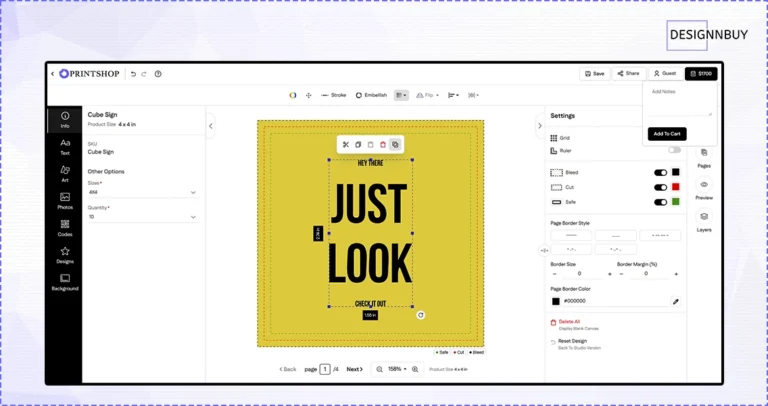 The pattern across all seven mistakes is the same.
Avoiding web to print editor UX mistakes comes down to one principle: do not make the customer think. Every interaction should be visible. And every action should be one click. Every change should be immediately reflected on the canvas.
Legacy editors were built by people optimizing for feature count. Modern editors are built by people optimizing for time-to-finished-design. Those are two very different products.
The recently redesigned DesignO editor was rebuilt around exactly these principles. Inline text editing. A responsive canvas that resizes when panels open and close. A right-side utility panel covering Settings, Pages, Preview, and Layers. Persistent product-side navigation. A side-panel preview that updates in real time as customers edit.
Every decision was made to reduce the distance between “start designing” and “add to cart.”
Comparing full platforms, not just editors? See how DesignNBuy stacks up against other product personalization softwares on the market.
Ready to Fix Your Editor?
If your editor fails on three or more of these, you are leaving real revenue on the table every month. The math is straightforward. Higher-intent traffic, lower conversion, compounded daily.
The redesigned DesignO editor was built for Shopify and WooCommerce storefronts that take personalization seriously. It addresses each of these web to print editor UX mistakes by design, not by coincidence.
Frequently Asked Questions
How Many Sales Is Your Editor Quietly Costing You?
Tavishi
Content Writer at @DesignNBuy
Tavishi is a content writer at @DesignNBuy, focused on the web to print industry. She creates well researched, easy to read content that helps print businesses understand digital solutions, product customization, and modern printing workflows.
All PostsRelated Posts
Trusted by 2000+ Print Businesses
Ready to See It in Action?
Explore our print shop platform at your convenience. Request a demo URL to experience the storefront, design tool, pricing, and much more.